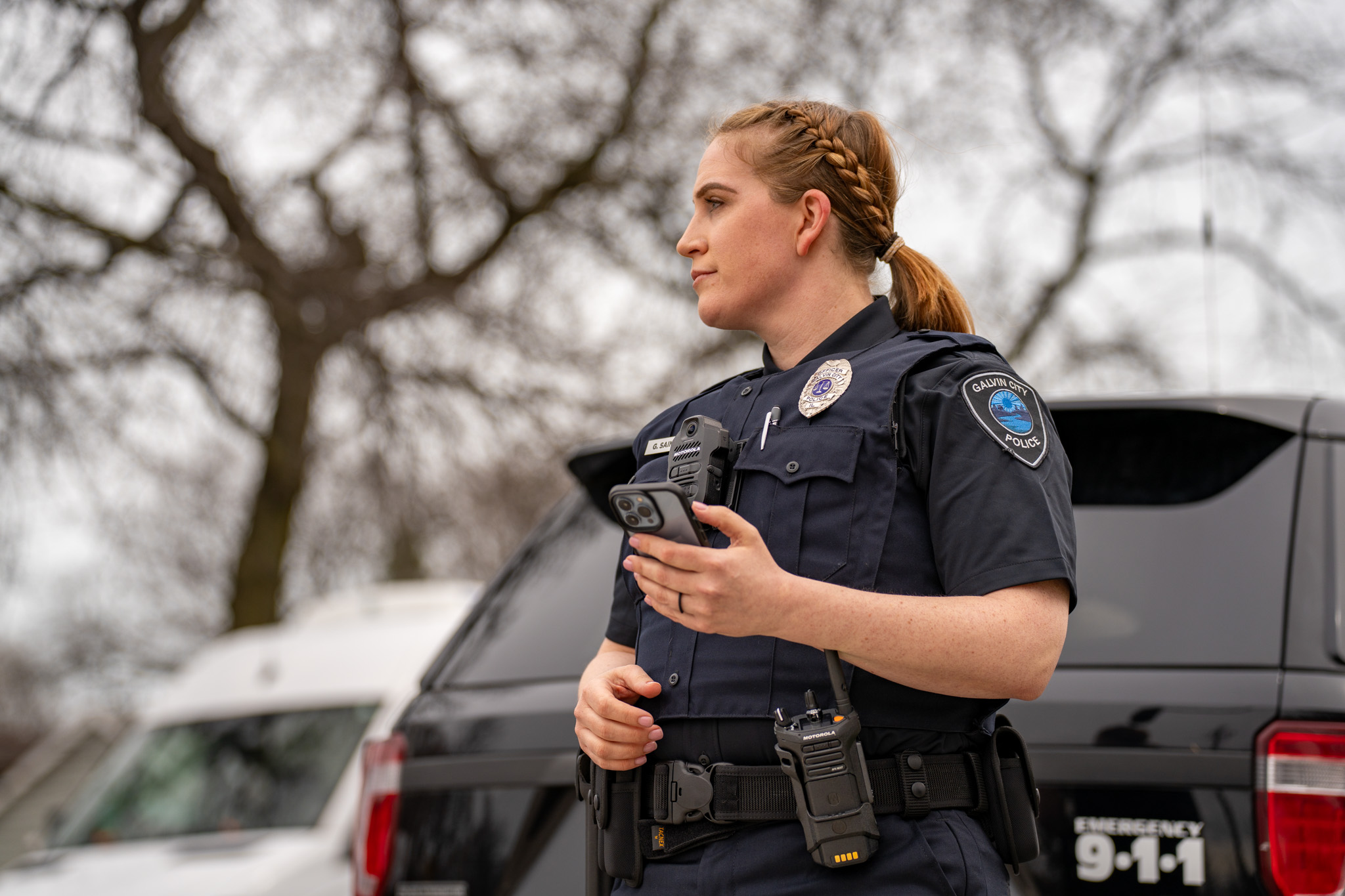
Unit management allows agencies to connect location data from resources in the field, including radios, body cameras or in-car cameras, into CommandCentral Aware. Unit management allows you to create “Agency Groups” for your units, serving two crucial purposes:
Visual Control & Clarity on the Map
By assigning units to specific Agency Groups, you can customize their appearance on the map with unique icons and colors.
This visual differentiation makes it much easier for operators to quickly identify who they are looking for, especially when dealing with a large number of units. Imagine distinguishing between police, fire and EMS personnel at a glance, or quickly locating a K9 unit.
User Permission Control
When a unit is placed into an Agency Group, that group becomes a distinct map layer in CommandCentral Aware that can be permissioned for visibility to a group of users.
This is invaluable for sensitive units, such as SWAT teams, undercover officers or specialized marine units, whose locations may pose a security risk if visible to all users. You can configure CommandCentral Aware to ensure that only a specific, authorized set of users can view these sensitive locations. This ensures operational safety while still leveraging the system’s real-time locationing capabilities.
Recommendations for Initial Setup & Best Practices
Unit management is powerful when set up initially with your agency’s organizational structure in mind. Here are key recommendations for success:
Plan Your Group Structure
Before you start configuring, consider how your agency operates and what level of detail you need:
Broad Categories: Begin by separating units into broad categories like “Law,” “Fire” and “EMS.”
Jurisdictional Separation: For larger agencies or sheriff’s offices that encompass multiple smaller agencies, consider creating groups for each sub-agency (e.g., “Sheriff’s Deputies,” “School Resource Officers” or “Neighboring PD”).
Granular Units: Beyond broad categories, think about specialized units that require unique identification or restricted viewing, such as “SWAT,” “K9,” “Airport Unit” or “Marine Patrol.”
Prioritize Permissioning
The ability to lock down sensitive unit locations is a core strength of Agency Groups. Identify which units require restricted visibility and design your groups accordingly from the start. This prevents potential safety compromises and ensures your agency can fully utilize locationing data without hesitation.
Seek Guidance if Needed
If you find the initial setup confusing, don’t hesitate to reach out for support. By prioritizing your initial setup, you’ll ensure a smooth and efficient experience.
By thoughtfully configuring your agency groups with unit management, you’ll enhance visual clarity, streamline operations and bolster the security of your critical real-time information in CommandCentral Aware.
For more CommandCentral Aware knowledge, visit the CommandCentral Aware Manual.